
Table view: sort columns, filter rows
The table view is now a mini spreadsheet: click a header to sort, type to filter — and neither breaks editing.
The table view renders an array of objects as a spreadsheet — which sets the expectation that a spreadsheet's two most basic moves work: click a header to sort, type in a box to filter. Until now neither did, which made a 500-row array much harder to explore than the same data pasted into Excel.
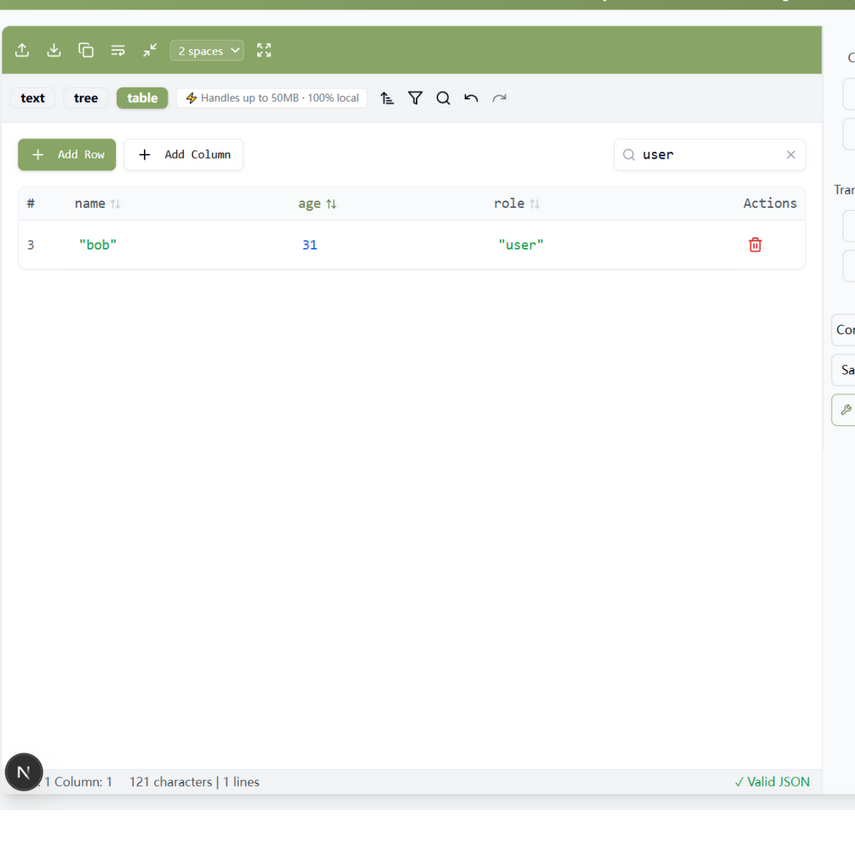
What changed
- Column sorting — click any header to sort ascending, click again for descending, a third time to return to document order. Numbers compare numerically (so 9 < 10, not “10" < "9"), missing values sort last, and the active column shows a direction indicator.
- Row filtering — a search box filters rows where any cell contains the term, case-insensitively, with a live row count and a one-click clear.
- Editing stays correct — sorting and filtering only affect the display. Edit or delete a row while sorted and the change still lands on the right document row, because the view tracks each row's original index. This is the part that breaks in naive implementations, and the part we tested hardest.
How to use it
Paste an array of objects into the editor and switch to table view (the link opens it directly). Sort by any column, filter to the rows you care about, edit inline, and the underlying document stays consistent — sorted view, correct edits.
Sorting that never corrupts
The hard part of table sorting is not the sort — it is keeping edits honest while the view is reordered. This table tracks every row's document index, so sort, filter, edit, and delete all compose: change a cell while filtered, delete a row while sorted, and the underlying document stays exactly right. A view you can trust with mutations, not just with looking.
Try it in your browser
Every tool on JSON Formatter App runs 100% client-side. No upload, no signup.
Open the editor